How to Check In at an Event
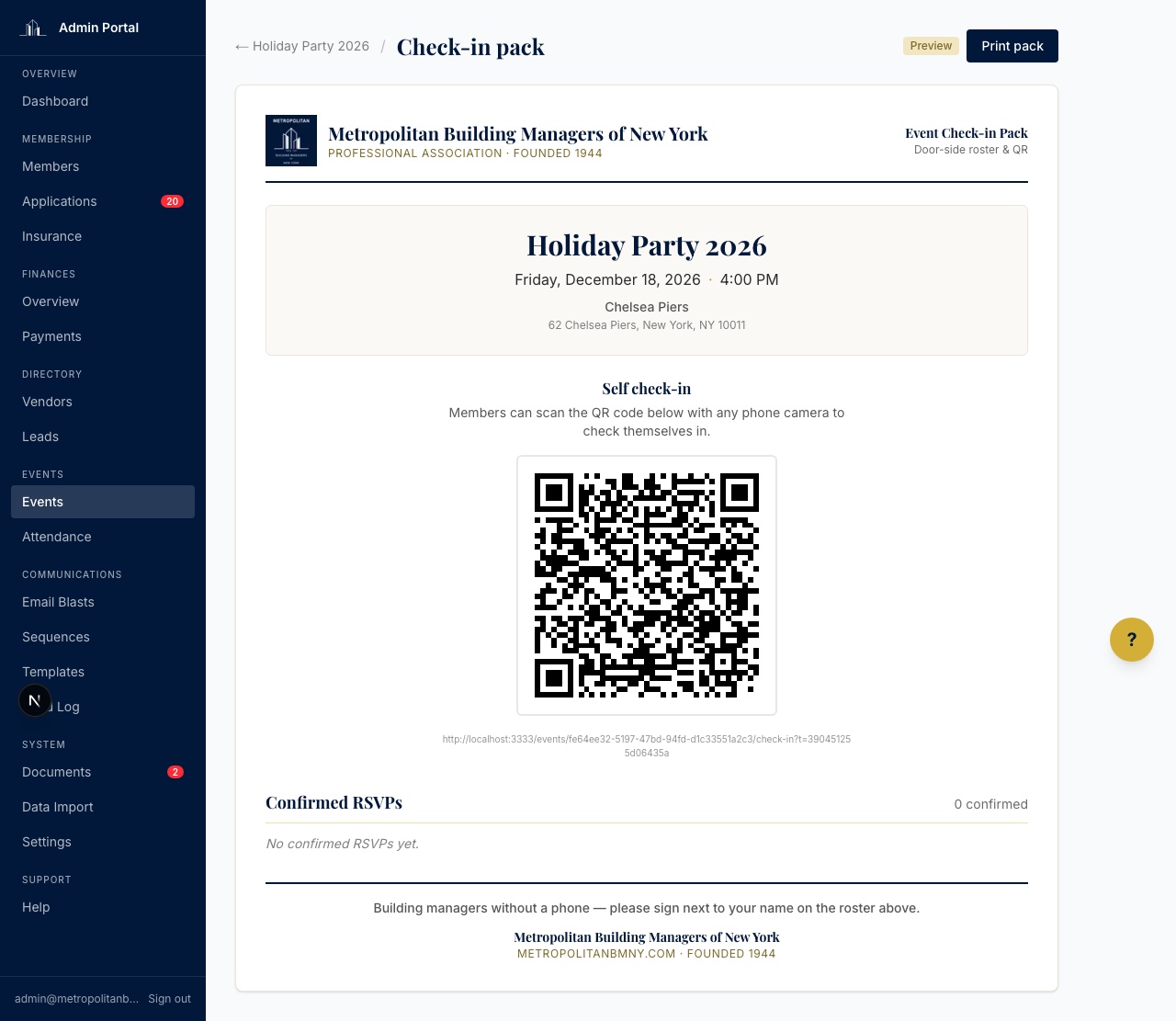
When you arrive at a Metropolitan Building Managers of New York (Metro BMNY) meeting or event, the board sets out a printed sign-in sheet with a QR code. Point your phone camera at the QR code, tap the link that pops up, and confirm your email — that is the whole flow. No app to install, no password to remember, no line at the front door.
This page walks you through it.
What you need
- The phone you have on you (any modern smartphone with a camera)
- The email address you used to RSVP for the event
- An RSVP that is already confirmed for the event you are attending
If you did not RSVP ahead of time, see a board member at the door — we can get you in, but the QR check-in only works for confirmed RSVPs.
What you see at the door
Each event has a printed check-in pack — a single Letter-size page on the board's table with the Metro BMNY letterhead at the top, the event title and date front and center, and a large QR code in the middle. Below the QR code is the URL spelled out, in case the QR scanner does not cooperate.
Steps
- Open your phone camera. On iPhone or Android, the default camera app reads QR codes — you do not need a separate app.
- Point at the QR code. Hold the phone steady about a foot from the page. A yellow link will pop up at the top of the screen within a second or two.
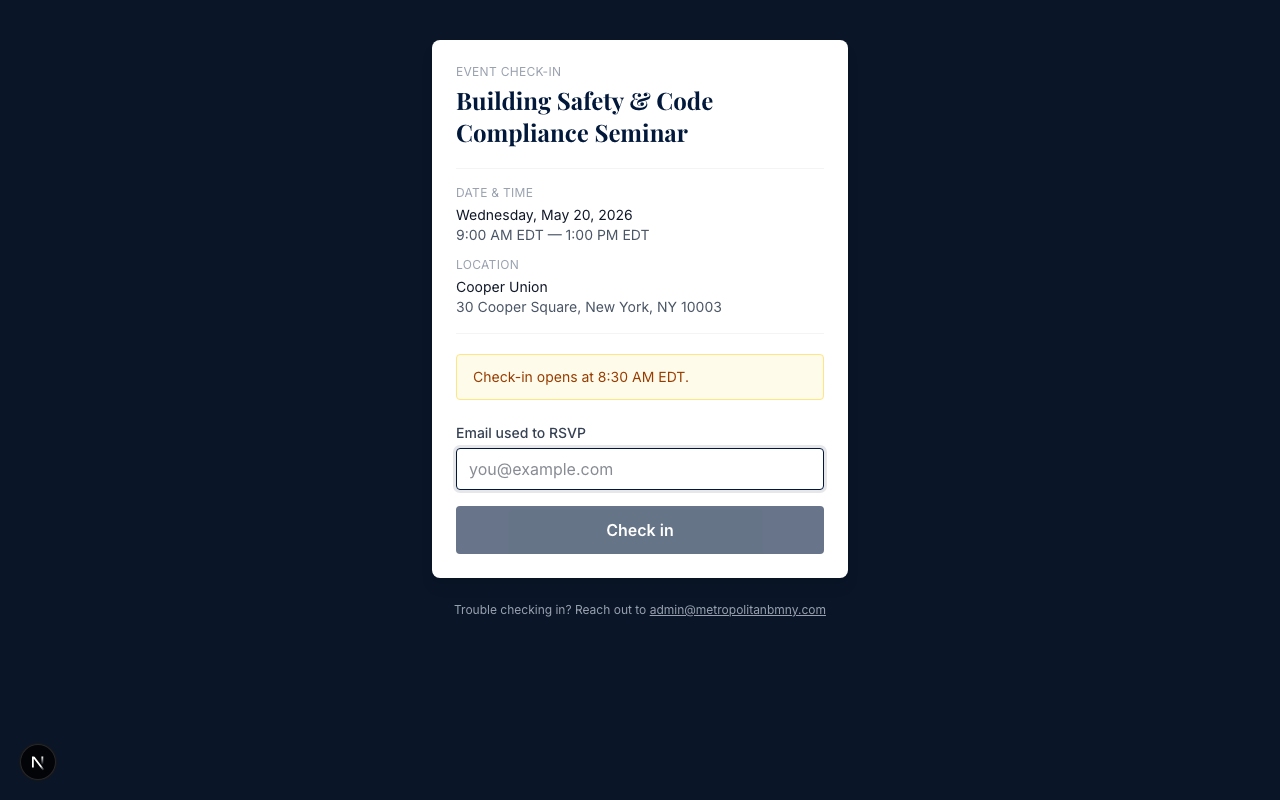
- Tap the link. Your phone opens the check-in page in your browser. The page shows the event title, date, time, and location at the top, so you can confirm you are scanning the right one.
- Type the email you RSVP'd with. This is the same email Metro BMNY has on file — the one you log into the member website with. Capitalization does not matter.
- Tap the Check in button. A green confirmation message appears: "Welcome, [your first name]! Enjoy the event."
That is it. You are checked in. Find a seat — refreshments are usually at the back.
Common questions
What if my camera does not pick up the QR code?
It happens — bad lighting, glare, fingerprints on the lens. Two backup options:
- Type the URL manually. The board prints the URL right under the QR code in case the scanner fails. Tap your phone's browser, type the URL, and you land on the same check-in page.
- Ask a board member. We can hand you the URL or check you in by hand if the digital flow is not cooperating. The paper roster on the same page is our backup.
What if my RSVP email does not work?
The check-in page rejects emails that are not on a confirmed RSVP for that event. Two reasons this can happen:
- You used a different email to RSVP. Some members RSVP with their personal Gmail and have their work email on the website — or vice versa. Try the other address.
- You did not RSVP ahead of time. The QR check-in is only for members who already confirmed their seat through the member website. Walk-ins are welcome at most events — see a board member at the door.
If neither fixes it, the check-in page shows a friendly "We could not find your RSVP" message with a Try a different email button so you can retry without re-scanning.
What if I checked in once already?
Nothing happens twice. The system is set up so re-checking in just shows the same green confirmation message. You will not get charged twice or counted twice.
What if check-in is closed?
The QR check-in opens 30 minutes before the event start time and closes 30 minutes after the event end time. If you arrive way early or way late, the page will show "Check-in opens at [time]" or "Check-in is closed for this event" instead of the email field. Talk to a board member at the door — they can still mark you present.
Do I need to be logged in to the member website?
No. The check-in URL is open access on purpose — no login required. The board generates a unique link for each event, signs it cryptographically, and prints the QR code that points to it. So a forwarded URL from someone else does not work for you, and you do not need to fight with passwords at the door.
Why we use QR check-in
Manual sign-in sheets at the door slow everyone down — there is always a clipboard line. With QR check-in, members move through the door without waiting and the board still gets a clean attendance record. The paper roster is still on the same printed page as the QR code, so we have a backup if the wireless drops or someone's phone is dead.
If you have feedback on the check-in flow — what worked, what did not — email admin@metropolitanbmny.com. The new system rolled out for the 2026 season and we are still tuning it.
If you have not RSVP'd yet, see How to RSVP for an Event. If you already did and need to cancel, see How to Cancel an RSVP.
Metro BMNY has been serving NYC building managers since 1944. Showing up matters; QR check-in is just the easy part.